
Made in Pakistan

Desktop Computer, Desktop PC, and Pacer Desktop PC: Features, Uses, and Buying Guide

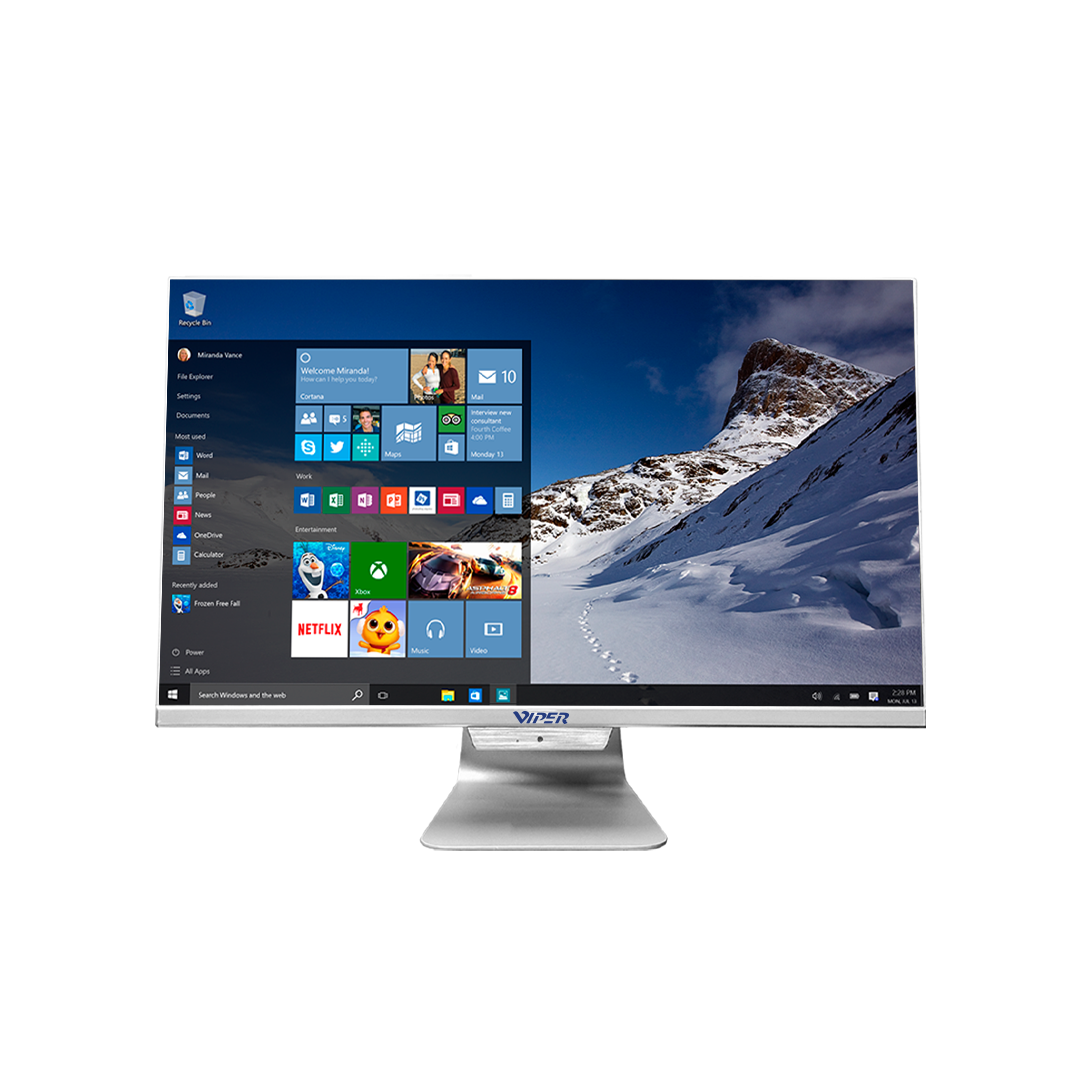
The computer starts quickly but may slow down when joining a meeting, switching between different browser tabs or opening a spreadsheet. Buying a desktop computer becomes easier when you understand the daily needs. The right system is more important than an attractive one whether you are buying it for an office or setting up a study corner.
What is a desktop computer?
It is built for a fixed workstation. It consists of a keyboard, mouse and a separate monitor. Desktops are ideal for tasks such as managing accounts, editing media, preparing documents and attending virtual classes.
What is a Desktop PC?
It is a desktop personal computer. Most purchasers think desktop PC and desktop computer belong to the same class. A major difference between them is that a mini system takes less space, an all-in-one system combines components behind its screen and a tower system offers an individual case.
What is a Pacer Desktop PC?
A Pacer desktop PC is a model of Viper’s desktop range. Its T-Series and P-Series product pages include various memory capacities, SSD or HDD storage options and Intel core i3, i5 and i7 processor features.
What are the benefits of using a desktop computer?
You can create a workspace according to your needs through a desktop. You can choose important accessories, a comfortable keyboard and a larger monitor. Without instantly replacing the entire system, you can easily upgrade components.
How does a Desktop PC differ from a laptop?
A laptop integrates screen, flexibility and battery capacity. A desktop system often requires individual peripherals and stays in your space. Portability becomes crucial when you work at different locations.
What should you consider when buying a desktop computer?
Begin with your most productive day. Consider the devices you will connect, applications you will operate and the files you will save.
- Total cost: Count the software, monitor and peripherals.
- Connectivity: Combine ports to your display, network and printer.
- Support: Consider repair maintenance and warranty coverage.
- Power: Explore a proper UPS where interruptions might affect work.
Is a Pacer Desktop PC suitable for home and office use?
Yes, if the configuration aligns with the workload. Viper offers the P-series for its home entertainment and corporate applications. Focus on the daily sensibility for a family computer. Before choosing a system, consider the network connections and future expansion for office tasks.
What specifications should you look for in a Desktop PC?
Not only Core i5, but also check the processor’s exact generation and model. Storage manages software and files while RAM supports dynamic applications. Loading and startup becomes easier with an SSD.
Frequently Asked Questions
1. Is a Pacer Desktop PC suitable for business and productivity?
Yes, provided its processor, memory and storage meet your applications’ requirements. Confirm compatibility with accounting, reporting or other specialist software.
2. What is an all-in-one desktop?
An all-in-one system includes computer components within the screen, minimizing the need for an individual computer case.
3. How does an all-in-one desktop differ from a traditional Desktop PC?
A traditional system has an individual computer case and monitor. An all-in-one system usually provides few internal upgrade options.
4. Is an all-in-one desktop suitable for small workspaces?
Yes. Desk space can be reduced by all-in-one systems, yet ventilation and screen dimensions still need to be checked.
5. Can a desktop computer be upgraded?
Replacement storage or additional RAM are often available. Processor and graphics features usually depend on power capacity and motherboard compatibility.
6. How much RAM and storage does a Desktop PC need?
8GB RAM may be enough for easy tasks whereas 16GB supports multitasking. For most users, 512 GB SSD is a real starting point.
7. Can a Pacer Desktop PC support multiple monitors?
Viper offers multiple-display support for Pacer models. Before buying, check the output ports, authorized resolutions and display capability.
8. What are Android tablets commonly used for?
Android tablets help in video calls, entertainment, reading, mobile data collections and learning applications.
9. How do Android tablets compare with a desktop computer?
Desktops offer greater workspace for desktop software and keyboard tasks. Tablets focus on portability and touch input.
10. What are biometric tablets?
Biometric tablets combine hardware for securing identifiers such as identity software and fingerprints.
11. What are biometric tablets used for?
It can be used for access control, identity verification and attendance.
12. How do biometric tablets differ from standard Android tablets?
Biometric tablets provide integration capabilities and specific capture hardware. Biometric shows a device capability and android describes an operating system.
13. Can Android tablets and biometric tablets work alongside a Desktop PC?
Yes. Through right security controls, consistent applications can transfer details to desktop systems for administration, review and reporting.